Radio Stream Metadata Not Updating? Fix It Step by Step
When a radio stream’s song title is missing, incorrect or stuck, the audio can still be working normally. The quickest way to find the fault is to trace the metadata from the automation system to the encoder, then through Icecast or Shoutcast and finally to the player or monitoring service. This guide shows how to identify the failing stage without disrupting a working broadcast. For help separating metadata faults from connectivity or silence problems, review the monitoring FAQ, or see the available monitoring plans.
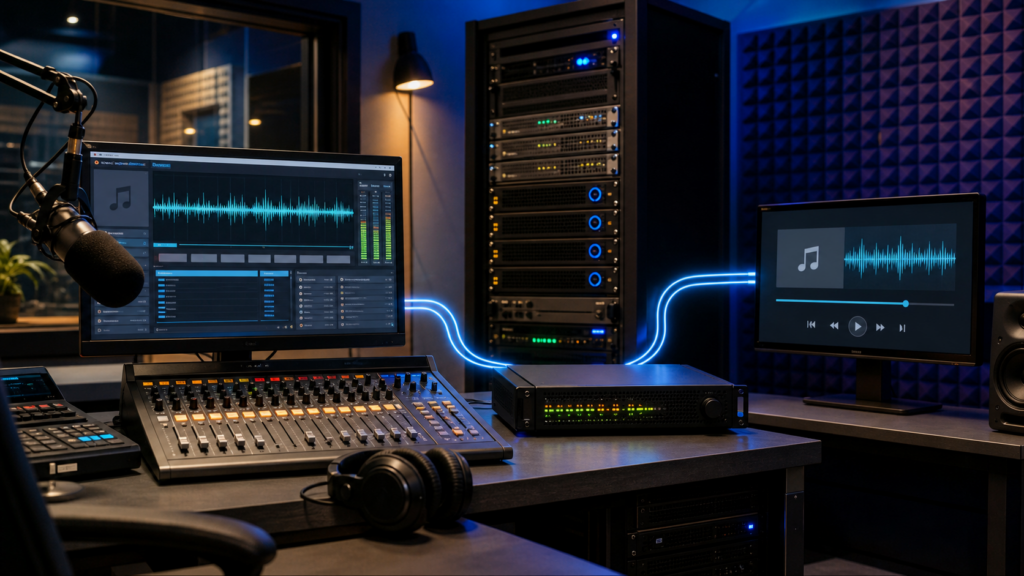
Understand the metadata path
Audio and metadata are related, but they are not the same thing. The audio stream carries the programme content. Metadata carries information such as the station name, artist and current song title. A station can therefore continue broadcasting normally while its now-playing information remains missing, delayed or frozen.
Use this path as the basis of the diagnosis:
Automation or playout software → encoder → Icecast or Shoutcast server → player, directory or monitoring service
The correct title may exist in the automation system but fail to reach the encoder. The encoder may send audio while forwarding only a static station name. The server may receive changing metadata correctly while the website player reads the wrong mount point, follows a redirect or displays a cached value.
Identify the exact symptom
Record what is actually wrong before changing any settings. A report that “metadata is not updating” can describe several different faults:
- Missing: no artist, title or station information appears.
- Incorrect: the displayed title does not match the audio.
- Delayed: the previous title remains visible for a short period after the track changes.
- Frozen: one value remains indefinitely.
- Malformed: special characters display incorrectly or the title is truncated.
- Inconsistent: one player is correct while another shows an older value or nothing at all.
Compare the same track change at every stage of the metadata path. Note the exact time and title so that each result can be matched accurately.
Check the automation or playout system
The automation system is normally the first source of now-playing information. Confirm that the title shown in the playout interface matches the audio currently on air.
- Check the current item. Confirm that the artist and title shown by the automation system are correct.
- Review available logs. Look for metadata export events, connection failures, authentication errors or rejected updates.
- Confirm the active integration. Make sure the metadata output is connected to the encoder that is actually broadcasting.
- Test scheduled, live and fallback sources. Some sources may provide audio without changing track information.
If the automation system still shows the previous track, correct that problem first. Icecast, Shoutcast and the website player cannot display an update that was never generated.
Check the encoder’s metadata input
The encoder may send audio successfully while failing to receive or forward track information. A connected source does not prove that metadata is working.
Play two clearly identifiable test tracks and check whether the encoder records two separate metadata changes. Distinguish between a fixed station name and changing song information.
- Confirm that the encoder is using the intended metadata source.
- Check for expired, disconnected or failed automation links.
- Review timestamps in the encoder log.
- Confirm that metadata resumes after an encoder restart or reconnect.
- Check whether a backup encoder or fallback source has taken over.
Use the documentation for the exact encoder and version in use. Metadata settings differ between products, and a directive copied from another encoder may not apply.
Confirm the correct Icecast or Shoutcast endpoint
A player may receive audio from one endpoint while requesting metadata from another. Compare the encoder destination, public stream URL, player URL and monitoring URL character by character.
- Check the hostname, port and path.
- Confirm the correct Icecast mount point or Shoutcast stream identifier.
- Check whether the public URL redirects elsewhere.
- Confirm that the redirect destination carries the same live source.
Multiple mounts, fallback sources and old public URLs are common causes of stale metadata.
Inspect the response with curl
Use curl to inspect the exact public endpoint consumed by the player or monitoring service.
curl -I "https://radio.example.net:8443/stream"This checks the response headers. Review the status code, declared content type and any Location header showing a redirect.
For a normal GET request with verbose connection details, use:
curl -v --max-time 15 -o /dev/null "https://radio.example.net:8443/stream"A live stream is designed to remain open, so curl may end with error 28 when --max-time 15 deliberately stops the request. That timeout does not, by itself, mean the stream has failed.
An ordinary HEAD request may not expose changing ICY metadata, and different server versions and hosting platforms may return different headers. Use curl to confirm the endpoint, redirects and response type, not as the sole proof that now-playing data is present.
Compare every stage of the chain
Use a controlled track change and record the result at each point:
- Automation: does it show the correct title at the correct time?
- Encoder: does it receive and forward the new value?
- Server: does the correct Icecast mount or Shoutcast stream expose the update?
- Receiving service: does an independent player, directory or monitoring service display it?
The first stage that fails to update is usually where the investigation should continue. This is more reliable than changing the website player simply because that is where the problem is visible.
Investigate caching, redirects and polling delays
If the stream server shows the correct title but the website does not, the problem is downstream.
- Test the direct stream in another player.
- Check whether the player follows a redirect to an older endpoint.
- Compare the embedded player with the public stream URL.
- Review the player’s polling interval or metadata API.
- Check browser, proxy, CDN or API caching.
- Allow for update delays in radio directories and third-party widgets.
A frozen display does not prove that metadata is absent from the stream. It may show that one receiving service has stopped refreshing.
Fix broken characters and malformed titles
Character-encoding problems can make valid metadata appear broken. Test representative titles containing apostrophes, ampersands, accented characters and non-Latin text.
Useful examples include:
Rock & RollFrançoisZoë’s Song- A title using the station’s normal non-Latin script
Compare how each title appears in the automation system, encoder, server and player. If simple titles work but these examples fail, investigate character encoding or text sanitisation rather than treating it as a complete metadata outage.
Do not strip special characters until the point of corruption has been identified.
Check fallback sources and backup encoders
A fallback source can keep the audio online while breaking the expected metadata path. The backup encoder may send only a station name, preserve the last title or send no now-playing information.
- Confirm which source is active when the problem occurs.
- Check the failover time and source priority.
- Verify whether the backup encoder sends changing metadata.
- Run a controlled failover test using a recognisable title.
- Confirm that metadata resumes when the primary source returns.
If the title remains frozen after the primary source reconnects, check whether audio resumed before the metadata integration was restored.
Why stale metadata matters
Incorrect now-playing information can affect more than the website player. Radio directories, widgets, apps and monitoring services may copy the same stale value.
It can also affect operational records when playlist, scheduling or royalty systems rely on stream metadata. The exact impact depends on how each service collects and processes track information.
Keep these checks separate:
- Reachability: can the endpoint be contacted?
- Audio: is usable sound being delivered?
- Metadata: is the current value present and changing?
A stream can pass the first two checks while failing the third.
Prevention checklist
- Test known tracks containing special characters.
- Confirm that the automation system generates each update.
- Verify that the encoder forwards changing titles rather than a static station name.
- Document the correct mount point, port and public endpoint.
- Retest metadata after encoder restarts and reconnects.
- Check every fallback source and backup encoder.
- Compare the direct stream with the website player.
- Allow for directory and widget refresh delays.
- Monitor metadata separately from connectivity and audio.
- Record the last confirmed update time for future comparison.
The most reliable diagnosis comes from tracing one known track change through the complete chain. Once the first missing update is found, the problem can be corrected without disrupting the parts of the broadcast that are already working.