Why Your Radio Stream Works in VLC but Not in a Web Browser
When a radio stream works in VLC but not in browser playback, that is a diagnostic clue—not proof that the public stream is healthy for web listeners. VLC may connect to and interpret the response differently from a browser’s media element, while an embedded player introduces another layer. This guide compares the endpoint and HTTP response, the delivered audio format and headers, browser security and media rules, and the HTML player itself. It also separates the automation system, encoder, stream server and public endpoint: a running process or “online” status does not prove that a browser can consume the listener-facing URL. To check what your monitoring service tests, see the FAQ before changing station settings.
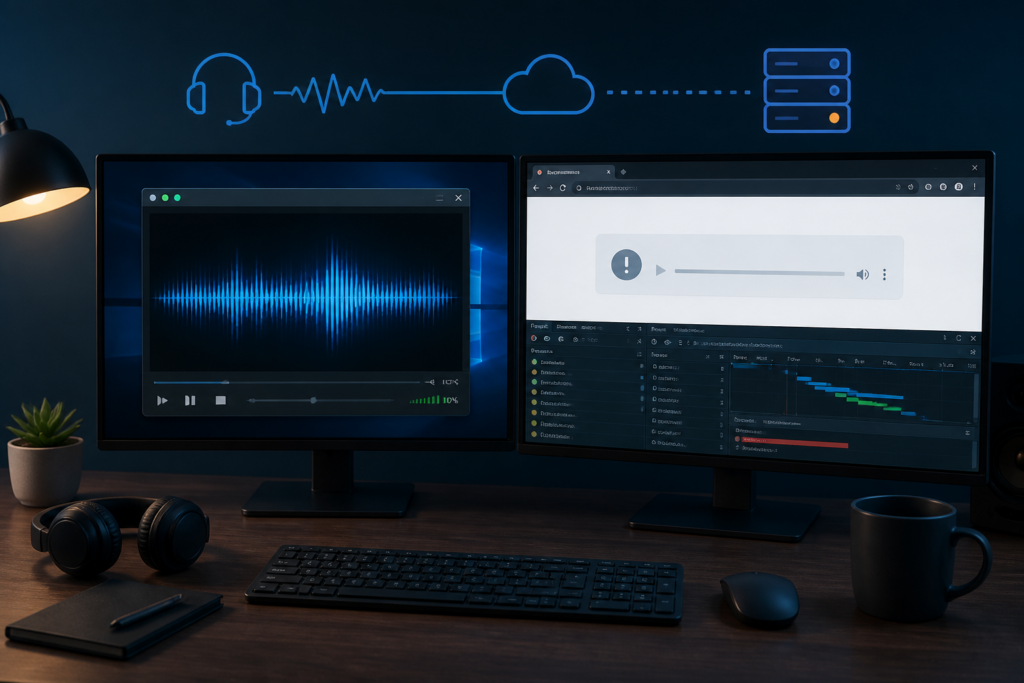
Start with the failure pattern, not the encoder status
When a radio stream plays in VLC but not in a web browser, the encoder may be working correctly while another part of the delivery path is failing. The quickest way to diagnose the problem is to identify the exact point at which playback stops.
- Confirm that VLC and the browser are using the same public stream URL.
- Check whether the direct stream URL works when opened in the browser.
- Inspect the HTTP response, redirects and declared content type.
- Test the stream with a minimal HTML audio element.
- Use the browser’s Network and Console panels to identify security, format or player errors.
Do not rely on the encoder connection indicator alone. A connected encoder proves that audio is reaching the streaming server. It does not prove that listeners can reach the public endpoint or that a browser can play the delivered format.
What VLC proves and what it does not
VLC is a flexible media player that supports many streaming formats and tolerates some unusual server responses. If VLC plays the stream, it proves that VLC can reach and decode the endpoint it was given. It does not prove that the same endpoint is suitable for an HTML5 audio element or a JavaScript web player.
The complete playback path normally includes:
- Automation or playout software: produces the programme audio.
- Encoder: sends the audio to Icecast or Shoutcast.
- Streaming server: accepts the source connection and serves listeners.
- Reverse proxy or CDN: may alter the URL, redirects, headers or TLS connection.
- Public stream endpoint: is the address used by listeners outside the station network.
- Browser media element: applies browser codec, security and user-interaction rules.
- Web player: adds JavaScript, source selection and custom controls.
A failure at any of these layers can produce the same visible symptom: the play button does nothing, playback stops immediately or the player shows a generic error.
Confirm the exact public stream URL
Before changing the encoder, codec or player, confirm that VLC and the browser are testing precisely the same address. Check the scheme, hostname, port, path, query string and mount point.
For example, these addresses may lead to different resources:
http://radio.example.test:8000/live
http://radio.example.test:8000/live/
http://radio.example.test:8000/
https://radio.example.test/live
An .m3u or .pls address may be a playlist containing another URL rather than the audio stream itself. VLC may automatically read the playlist and follow the contained address, while a browser may download or display the playlist as text.
Open the final public audio URL in a private browser window. This avoids cached player settings and confirms whether the browser can reach the endpoint outside the production player.
Inspect the HTTP response and redirects
Use the browser’s Network panel or a command-line request to inspect what the endpoint actually returns. The following command follows redirects, displays response details and stops after 15 seconds:
curl -v -L --max-time 15 -o /dev/null "https://radio.example.test/live"A live stream is designed to remain open. Because the command deliberately stops after 15 seconds, curl may end with error 28 after receiving valid audio data. That timeout is expected in this test and does not, by itself, mean that the stream has failed.
Check the following:
- Final URL: confirm where the redirect chain ends.
- Status code: note errors such as
401,403,404,502or504. - Content type: confirm that the endpoint identifies an audio format rather than HTML, JSON or plain text.
- Response body: make sure the server is returning a continuing audio stream rather than a status page or login form.
- TLS result: look for certificate, hostname or protocol errors on HTTPS endpoints.
A 200 response does not automatically prove that the endpoint is correct. A proxy can return an HTML error page with a successful status code.
Check browser support for the delivered audio format
VLC supports a wider range of codecs and stream variations than many browsers. The browser must support both the delivered audio format and the way it is exposed through the public endpoint.
Record the encoder’s output codec, sample rate, channel configuration and bitrate. Then confirm what the public endpoint actually delivers. A relay or proxy may expose something different from the encoder’s original output.
Test the same URL in the browsers and devices used by your listeners. If one browser works and another does not, the problem is more likely to involve codec support, browser implementation or device policy than the Icecast or Shoutcast source connection.
Do not assume that bitrate alone is responsible. Reducing the bitrate will not make an unsupported codec become playable.
Separate mixed content, CSP and CORS problems
Browser security failures are often grouped together as “CORS errors”, but they are not the same problem.
- Mixed content: an HTTPS page attempts to load an HTTP stream. Modern browsers may block or upgrade the request.
- Content Security Policy: the website’s
media-srcrule may not allow the stream’s hostname. - CORS: cross-origin permission may be required when the player uses CORS mode, Web Audio, canvas analysis or other JavaScript access to the media resource.
- TLS validation: an expired certificate, hostname mismatch or incomplete certificate chain can prevent the browser from opening the HTTPS stream.
Basic cross-origin playback in a native <audio> element does not always require CORS permission. Do not add CORS headers blindly. First read the exact browser Console message and identify which browser rule is blocking the request.
Test a minimal HTML audio element
Test the stream without the production player framework. Replace STREAM_URL with the exact public endpoint:
<audio controls preload="none">
  <source src="STREAM_URL">
  Your browser does not support HTML audio.
</audio>
Place this on the same website as the production player and start playback manually.
- If the minimal player works: investigate the production player’s JavaScript, selected source URL, event handling and custom controls.
- If it fails: continue checking the endpoint, response headers, audio format, browser security and TLS connection.
Test autoplay only after manual playback works. If a click starts playback but an automatic play() call fails, the stream may be healthy and the browser may simply be enforcing its autoplay policy.
Use browser Developer Tools to identify the failing layer
Open the Network and Console panels before selecting play. Reload the page, start the stream and record the evidence.
In the Network panel, check:
- The exact requested URL.
- The final URL after redirects.
- The status code.
- The declared content type.
- Whether any audio data is received.
- Whether the request is blocked before reaching the server.
In the Console, look for mixed-content messages, Content Security Policy violations, CORS errors, TLS failures and media decoding errors.
The HTML media element can also emit useful events such as canplay, playing, waiting, stalled and error. These events help distinguish a player-interface problem from a request or decoding problem.
A practical test sequence for station engineers
- Reproduce the fault. Test the same public URL in VLC and the affected browser.
- Confirm the final endpoint. Resolve any playlist file or redirect and record the final audio URL.
- Open the URL directly. Test it in a private browser window.
- Inspect the response. Record status, redirects, content type and TLS results.
- Test the minimal audio element. Remove the production player from the test.
- Inspect Developer Tools. Record Network and Console evidence.
- Compare browsers and devices. Identify whether the failure is platform-specific.
- Compare a known-compatible stream. Use the same page and browser to separate player faults from stream faults.
- Make one change at a time. Retest after each change so the cause remains identifiable.
Fix the layer that failed
- Wrong URL or mount point: correct the player’s source and test the public endpoint rather than an internal address.
- Playlist used instead of audio URL: configure the player with the final stream endpoint.
- Unexpected proxy response: correct the reverse proxy, redirect or CDN rule that is returning non-audio content.
- Unsupported audio format: choose an output format supported by the target browsers and devices.
- Mixed content: provide the stream over HTTPS when it is embedded on an HTTPS page.
- Content Security Policy: allow the required stream origin in the site’s
media-srcpolicy. - CORS-dependent player feature: configure the required cross-origin headers only after confirming that the player genuinely needs them.
- Player code failure: correct the selected URL, event handling or playback logic without changing a healthy encoder.
After correcting the fault, repeat the test from outside the station network. Local playback does not prove that listeners can reach the same public route.
Final verification checklist
- Confirm the final public URL, including scheme, hostname, port and mount point.
- Verify that redirects end at the intended audio endpoint.
- Check the HTTP status and declared content type.
- Confirm that the target browsers support the delivered format.
- Test the stream directly and through a minimal audio element.
- Check mixed-content, CSP, CORS and TLS messages separately.
- Retest the production player in another browser and on another device.
- Restart or reconnect the encoder and confirm that the public stream recovers normally.
- Verify the service from outside the station network.
External monitoring can confirm whether the public stream remains reachable after the fix. The monitoring FAQ explains the available checks, while the plans page provides the available monitoring options.